|
 |
|
|
|
Summer Special - Take 15% Off Instantly
Use Coupon TAKE15 on any NetVizor package. Click here to order! |
|
Configuring NetVizor's Viewer to Load Specific Computers Guide

Netvizor Network Monitoring Software

|
NetVizor is the award winning network monitoring and supervision solution that your network needs! NetVizor gives you the power to log all keystrokes, emails sent/received, websites visited, windows viewed, applications ran, internet connections made, passwords entered, chat conversations that were made, and even capture screenshots of the user's activities!
NetVizor allows you to centrally monitor and control machines on your network from one location. Remote realtime administration, monitoring, and tracking of users on a network has never been easier!
Learn More! NetVizor Network Monitoring
Need a Features List? NetVizor Features |
Step 1:
Open the NetVizor viewer software and click on "General Options". You will be presented with the following screen. Uncheck the "Enumerate Network on Startup" option and click "Save".

Step 2:
Click on the "IP Configuration" button to open the IP/Computer Configuration screen.

Step 3:
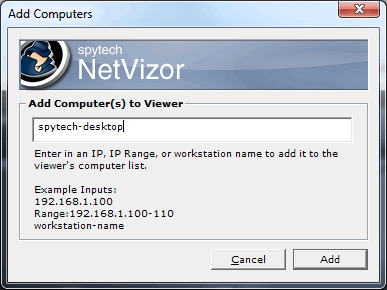
Add the names of the computers, or IP addresses of the computers you want to have the NetVizor viewer load. Be sure to check the "Check these entries when NetVizor loads" option then click "Save".

Step 4:
Restart the NetVizor viewer software to load your new computer scanning settings.
Return to: NetVizor How-To Guides & Information Database
HomePage: NetVizor Network Monitoring
Features: NetVizor Features
Download: Download NetVizor Demo
|
|